화면 배치도 아래 옵션에서 켜면, 고른 단계 이상의 알림이 울릴 때 코너뷰 창이 화면 가운데에 크게 뜹니다. Ctrl+Shift+1은 치우기, Ctrl+Shift+2는 그 차트 탭으로 이동입니다. 15초 동안 아무것도 안 하면 원래 자리로 돌아갑니다.
프리셋
화면 배치도 제목 옆 [프리셋]에서 지금 상태(차트, 배치, 알림, 옵션)를 2칸까지 저장하고 불러옵니다. 불러오면 필요한 차트 탭이 자동으로 열립니다.
설정
확장이 거래소 탭에 띄우는 안내와 우클릭 메뉴도 사이트에서 고른 언어로 바뀝니다.
오른쪽 위 톱니바퀴에서 화면 모드(자동·밝게·어둡게)와 버튼 색을, 지구본에서 언어를 고릅니다.
[일시정지]는 알림, 코너뷰 창, 화면 전송을 모두 멈춥니다. 다시 켜면 그 시점 가격부터 감시합니다.
차트가 많으면 화질을 "절약"으로 낮춰 PC 부담을 줄일 수 있습니다.
사용 팁
⭐ 프리셋으로 투자 방식마다 한 번에 바꾸기
단기 투자와 장기 투자는 보는 차트도, 알림을 거는 가격도 다릅니다. 두 구성을 프리셋 두 칸에 나눠 저장해 두면 그날 할 투자에 맞춰 불러오기만 하면 됩니다. 필요한 차트 탭이 자동으로 열리고 배치와 알림도 그대로 돌아옵니다. 각 탭에서 Alt+Shift+K만 누르세요.
1번 단기 투자 (차트 4, 알림 9)2번 장기 투자 (차트 2, 알림 3)
단기 투자: 1분봉·5분봉 차트를 여러 개 띄우고, 지금 가격 가까이에 알림을 촘촘히 겁니다. [프리셋]에서 1번을 고르고 이름을 "단기 투자"로 적은 뒤 [프리셋에 저장]을 누릅니다.
장기 투자: 일봉·주봉 차트 몇 개만 두고, 목표가처럼 멀리 있는 가격에 알림을 겁니다. 2번에 "장기 투자"로 저장합니다.
투자 방식을 바꿀 때는 그 칸을 고르고 [불러오기]를 누릅니다.
단계를 나눠 쓰세요. 참고용 가격은 낮은 단계(조용히), 꼭 봐야 할 가격은 높은 단계와 가운데 띄우기를 함께 쓰면 중요한 알림만 눈에 띕니다.
넣은 뒤 바로 시험하세요. 카드의 [알림 시험] 숫자를 누르면 그 단계의 소리와 깜빡임을 미리 확인할 수 있습니다.
차트에 이름을 붙이세요. 알림 기록과 OS 알림에서 어느 차트인지 바로 구분됩니다.
게임이나 작업 중에는 단축키를 쓰세요. 알림이 가운데 떠도 Ctrl+Shift+1로 치우고, Ctrl+Shift+2로 바로 차트로 갑니다.
차트가 많으면 화질을 낮추세요. "절약"이나 "보통"이면 PC가 덜 무겁습니다.
레이아웃으로 먼저 정리하세요. 차트 수에 맞는 레이아웃을 누른 뒤 변을 끌어 다듬으면 빠릅니다.
문제 해결
우클릭해도 차트가 추가되지 않아요
처음 쓰는 탭이면 우클릭 뒤 코너뷰 아이콘이나 Alt+Shift+K를 한 번 눌러야 합니다.
[+ 차트 추가]가 [추가 끝내기]로 바뀌어 있는지 확인하세요.
그래도 안 되면 "영역 직접 그리기"로 골라 보세요.
카드에 "화면이 끊겼습니다"가 떠요
탭을 닫았거나 사이트를 새로고침해 화면 공유가 끝난 경우입니다. [다시 연결]을 누르고 열린 탭에서 Alt+Shift+K를 누르세요.
알림이 울리지 않아요
"크롬이 소리를 잠가 두었습니다" 안내가 보이면 [소리 켜기]를 누르세요.
[가격 알림]의 "알림 켜기"와 그 알림의 체크가 켜져 있는지 보세요.
[일시정지] 중이 아닌지 보세요.
카드에 "탭에 현재가가 없어 알림이 멈췄습니다"가 보이면 그 거래소 탭이 현재가를 보여 주지 않는 상태입니다.
코너뷰 창이 더 커지지 않아요
크롬은 코너뷰 창을 화면 절반보다 크게 띄울 수 없습니다. 더 크게 쓰려면 데스크톱 앱이 필요합니다.
탭에 현재가가 없을 때는 차트 화면의 숫자를 읽어 보여 주는데, 이 값은 틀릴 수 있어 알림에는 쓰지 않습니다. 매매 판단은 거래소 화면으로 확인하세요.
"확장을 새로고침하세요"라고 나와요
chrome://extensions에서 코너뷰 확장의 새로고침(↻)을 누르세요.
단축키가 다른 프로그램과 겹쳐요
chrome://extensions/shortcuts에서 코너뷰 단축키를 바꿀 수 있습니다.
자주 묻는 질문
무료인가요?
크롬 시제품은 무료입니다. 상한을 늘린 유료 버전과 데스크톱 앱은 준비 중입니다.
내 화면이나 가격이 어디로 보내지나요?
보내지지 않습니다. 모든 처리는 내 PC 안에서 이루어집니다. 자세한 내용은 개인정보 처리방침을 보세요.
거래소 계정이 필요한가요?
아니요. 차트가 보이는 탭만 있으면 됩니다. 로그인하지 않은 차트 화면도 됩니다.
다른 브라우저에서도 되나요?
지금은 PC용 크롬만 지원합니다.
매매를 추천하나요?
아니요. 알림 가격은 사용자가 정하며, 코너뷰는 매수/매도를 추천하지 않습니다.
지원 범위
크롬 버전의 상한입니다. 데스크톱 앱과 유료 버전에서 늘릴 예정입니다.
차트
6개 (같은 탭의 차트는 1개로 셈)
가격 알림
모두 30개, 차트 하나에 10개
차트 이름
20자
프리셋
2개
코너뷰 창
1개, 화면 절반 크기까지
코너뷰 창은 하나이고 화면 절반보다 커지지 않습니다. 창 여러 개, 제목 줄 없애기, 클릭 통과는 데스크톱 앱에서만 됩니다.
PC용 크롬만 지원합니다(모바일 미지원). 코너뷰 탭을 닫으면 감시가 멈춥니다.
문의
위 내용으로 해결되지 않으면 support@corner-view.com으로 메일 주세요. 크롬 버전, 거래소 사이트, 무엇을 눌렀고 무엇이 보였는지 적어 주시면 빨리 답할 수 있습니다.
CornerView Help
CornerView is a Chrome tool that keeps small exchange charts wherever you want on your monitor and tells you when a price you set is reached.
Getting started
Before you start: you need desktop Chrome 116 or later. Closing the CornerView tab stops monitoring, so keep it open.
Install the extension: install the CornerView Chrome extension. It lets you pick charts with a right-click and position the CornerView window.
Show detailed install steps
CornerView isn't on the Chrome Web Store yet, so for now you load the extension folder into Chrome yourself. Once it's on the Web Store, it will be a single [Add to Chrome] click.
Unzip the file you received to get the cornerview-extension folder.
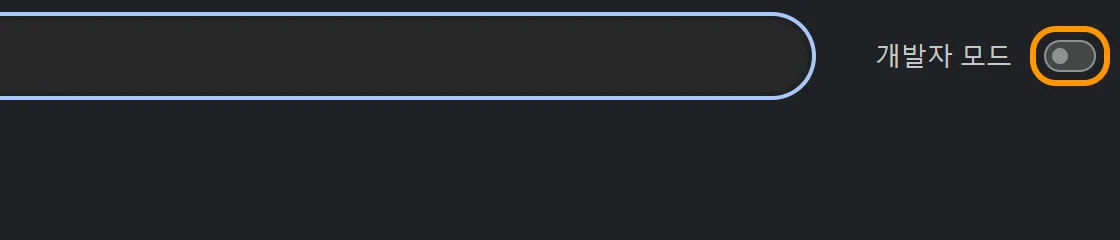
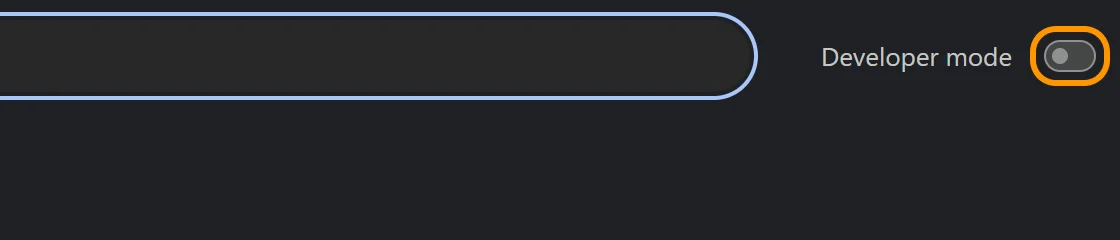
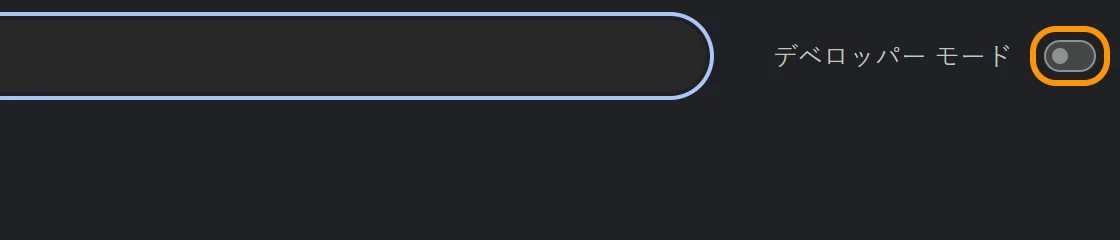
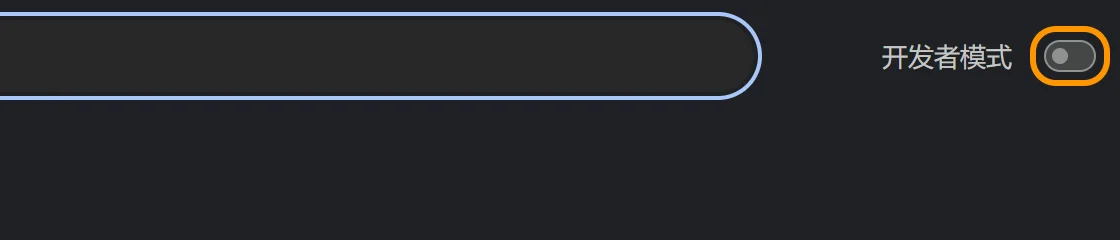
Type chrome://extensions in Chrome's address bar and turn on Developer mode at the top right.
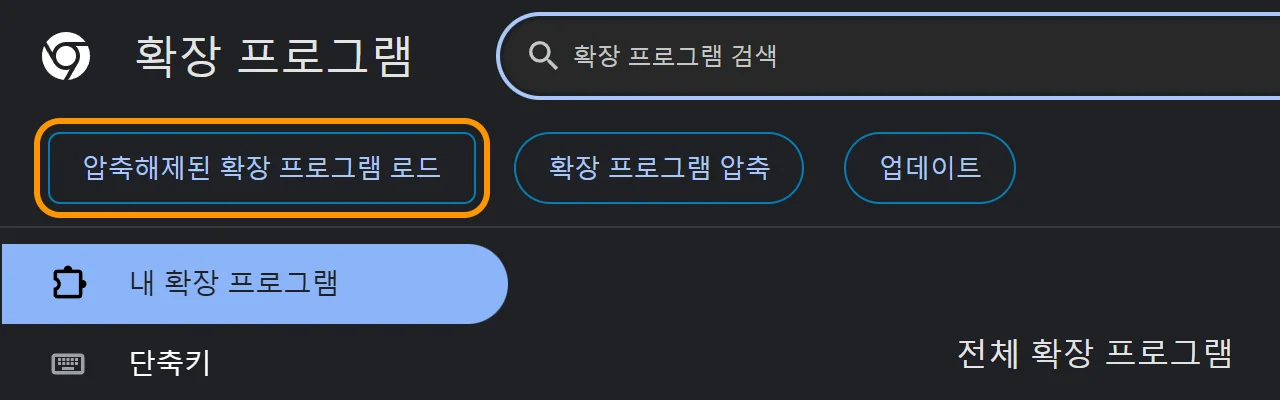
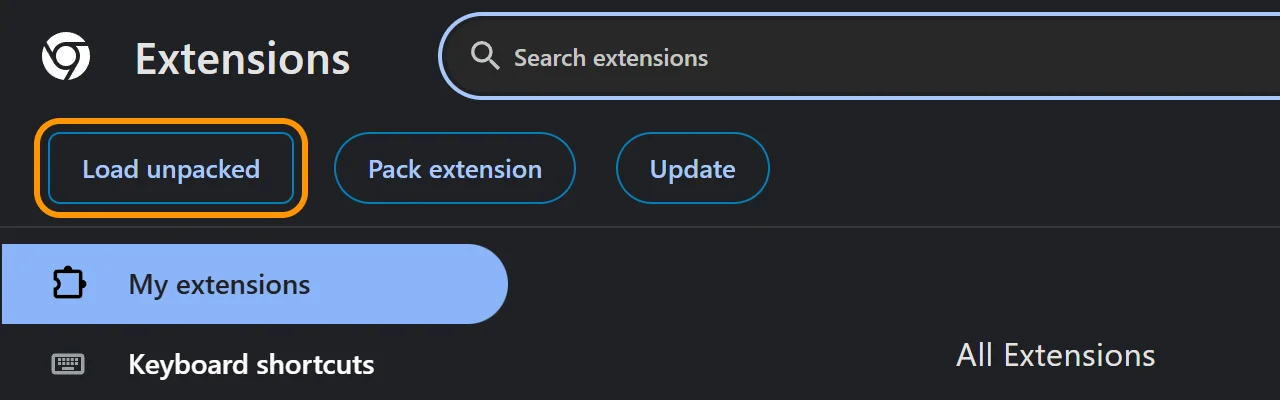
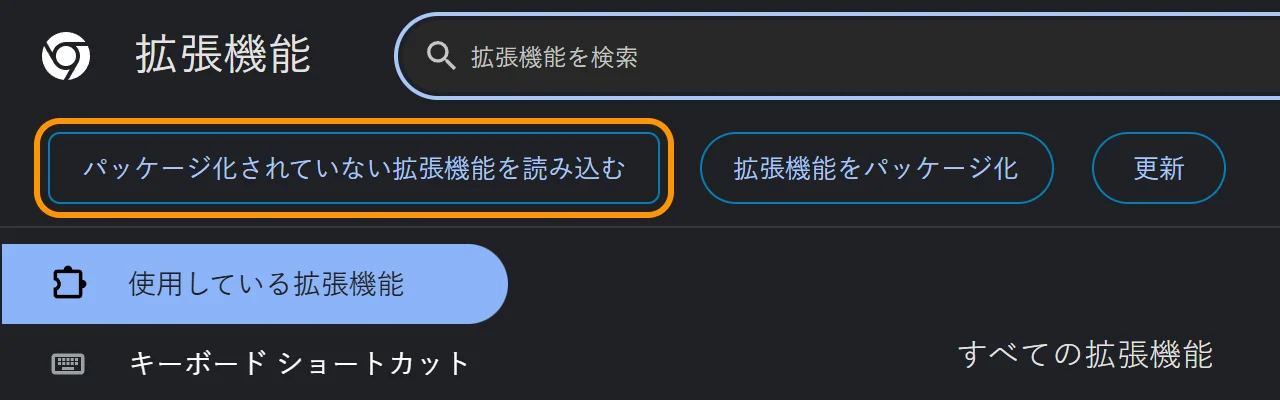
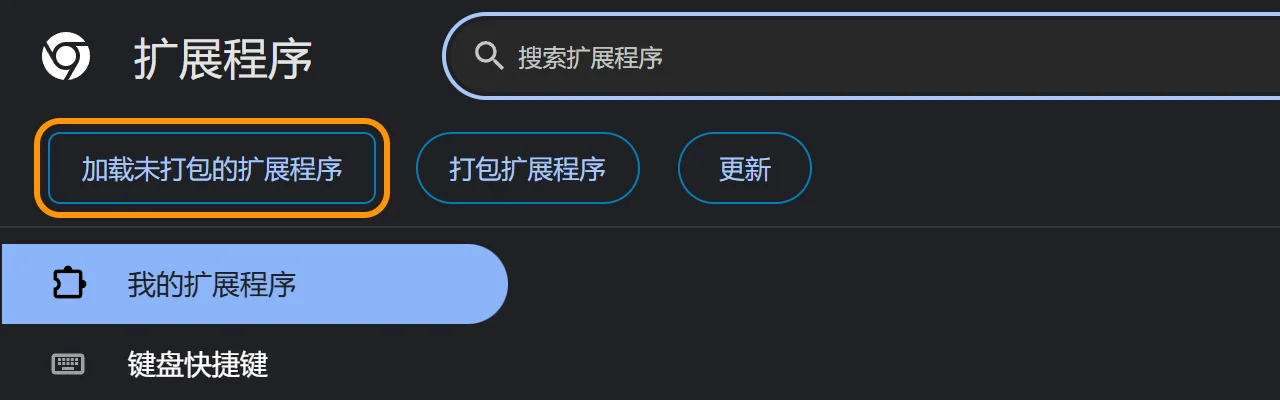
Press Load unpacked and choose the cornerview-extension folder.
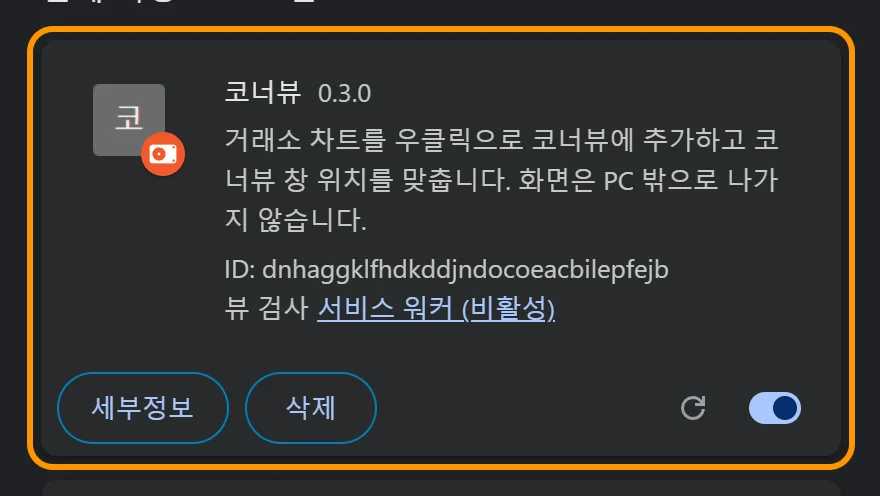
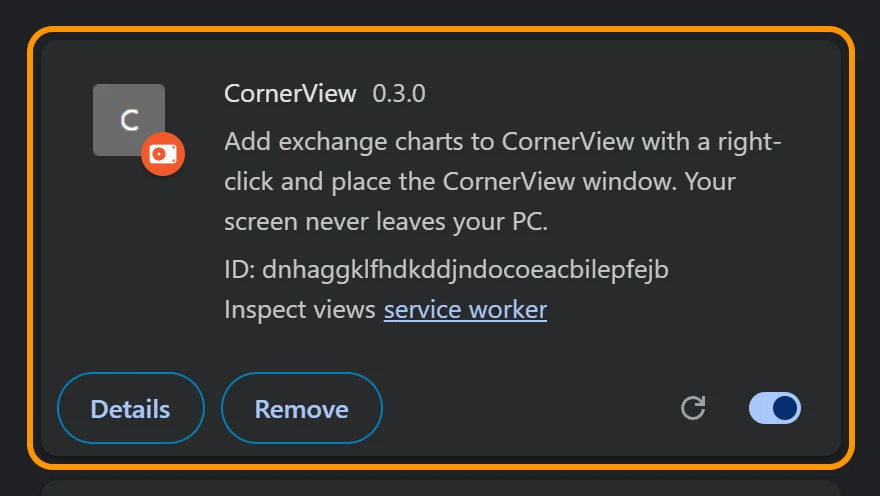
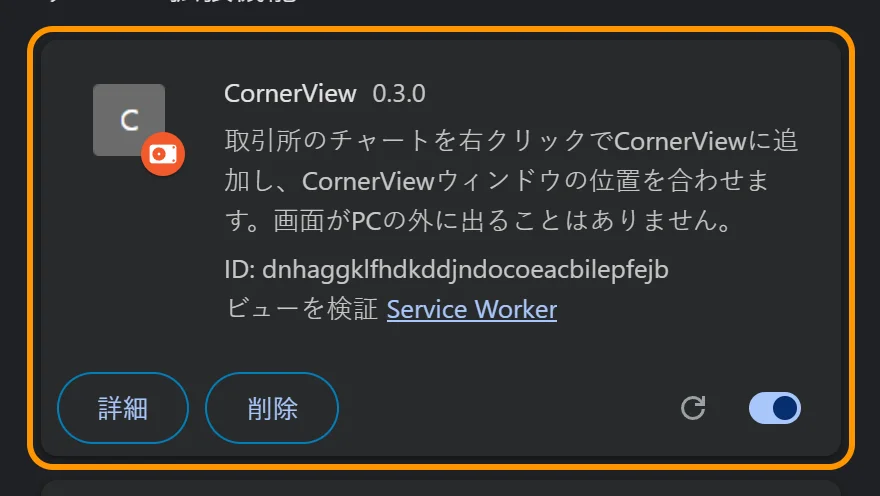
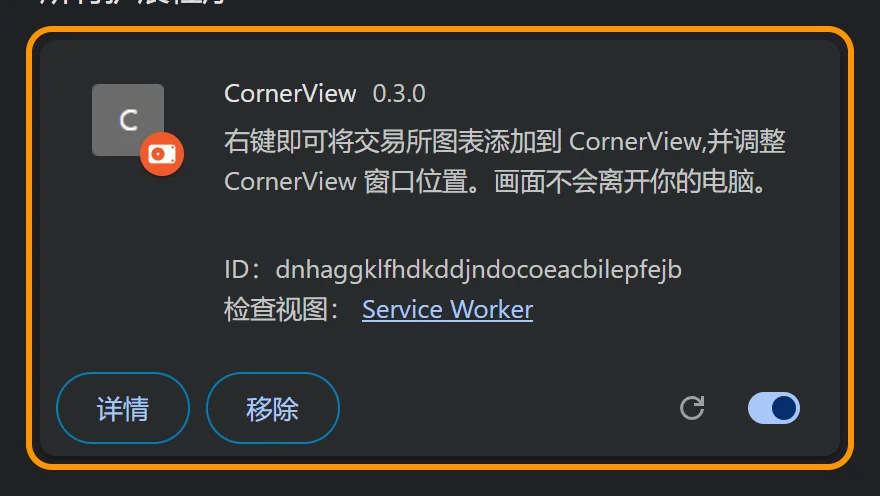
When CornerView appears in the list, you're done. Pin CornerView from the puzzle icon in the toolbar so its icon is easy to reach.
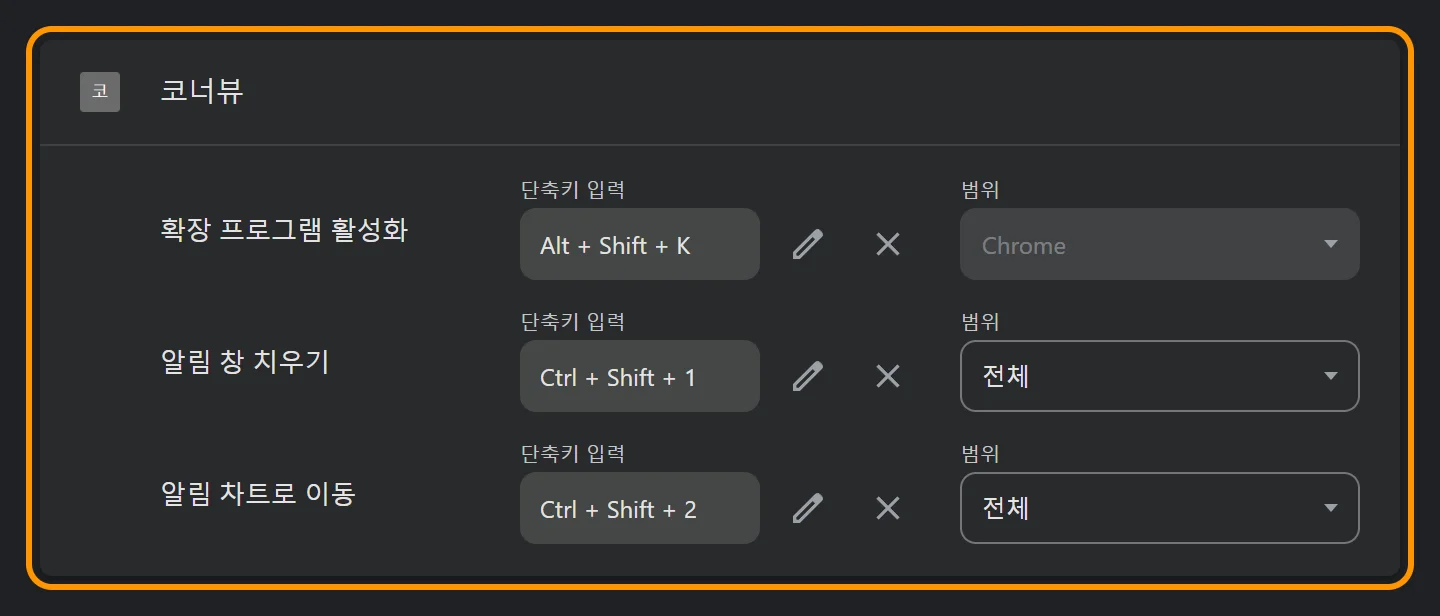
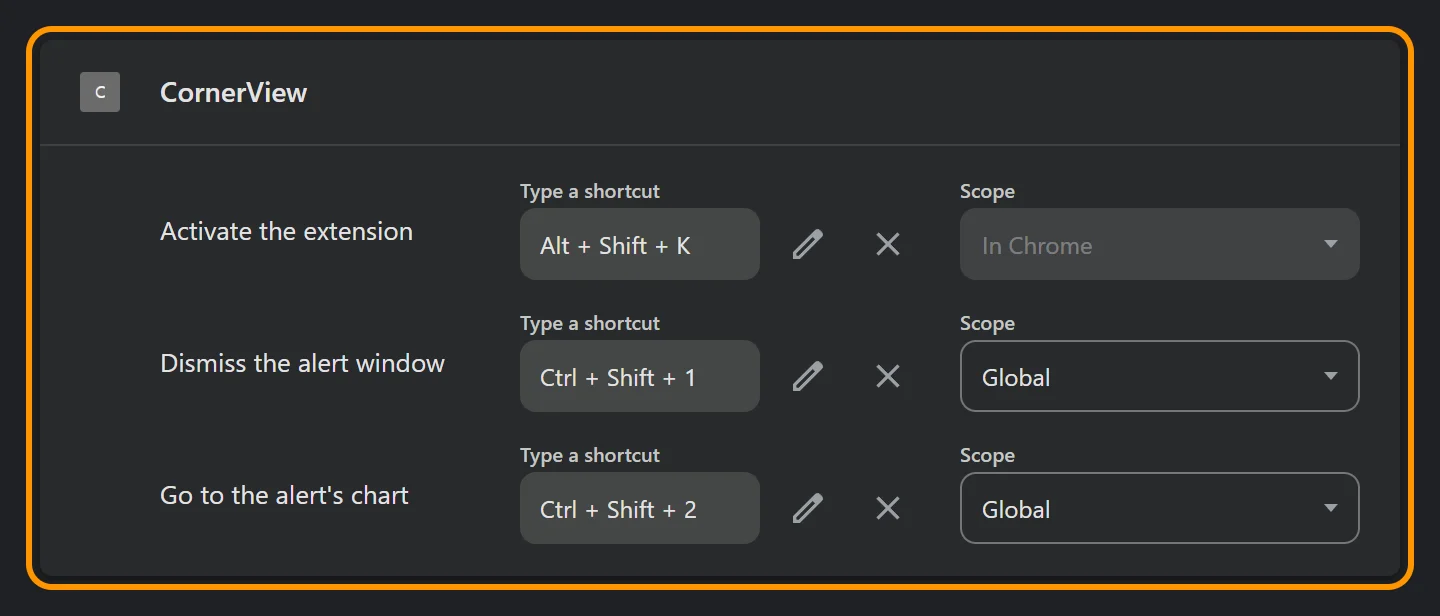
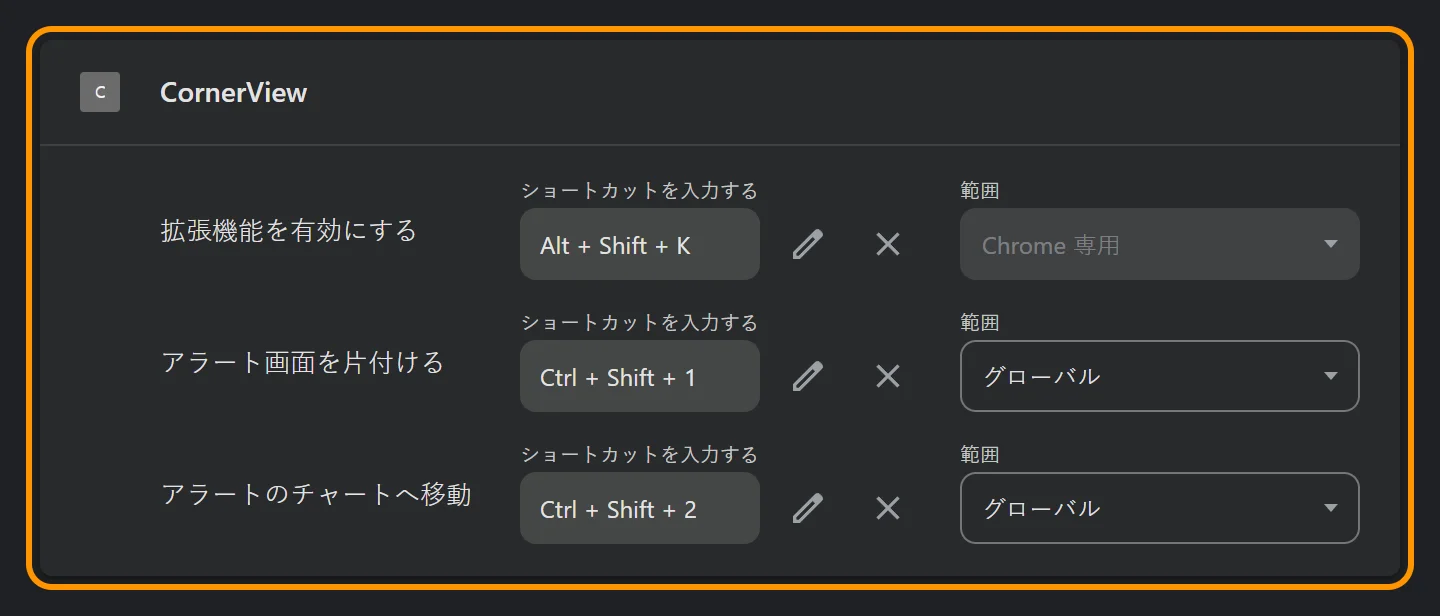
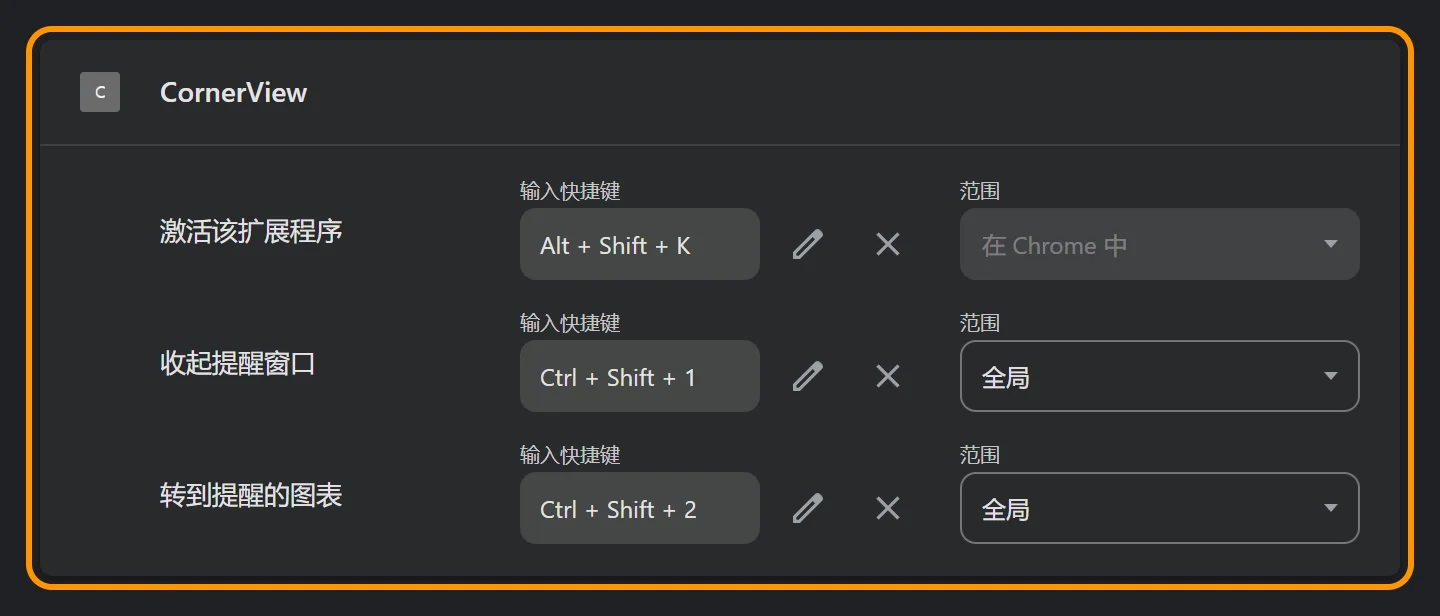
Check or change the shortcuts under Keyboard shortcuts on the left. The first one, Alt+Shift+K, allows adding charts in that tab.
Click a picture to enlarge it. If Chrome shows a notice about developer-mode extensions when it starts, don't disable CornerView if you want to keep using it.
Add a chart: press [+ Add chart], go to your exchange tab and right-click the chart. For a tab you haven't used before, then press the CornerView icon or Alt+Shift+K once.
Place and open: drag the card from My charts onto the screen map and press [Open CornerView]. The CornerView window opens at that spot on your monitor.
User guide
Adding and reconnecting charts
Pick by right-click: right-click a chart and CornerView finds the chart area for you.
Draw the area: drag on the tab's screen to pick the area to show.
If a card shows "Screen disconnected", press [Reconnect], then press the CornerView icon or Alt+Shift+K in the opened tab to reconnect to the previous area.
You can name a card in its name field (up to 20 characters).
Screen map and the CornerView window
The screen map is your whole monitor. The CornerView window opens exactly where you place cards.
Drag the middle to move and the edges to resize. Cards snap to nearby charts and swap places when dropped dead center.
Layout arranges cards in a grid in one go. Fit original ratio restores squashed charts.
Click a cell in Quick position (9 parts) to move your placed charts to that area at the same size.
Chrome won't show the CornerView window larger than half the screen, so larger setups are scaled down.
Price alerts
Press [Add alert] on a chart card.
Enter a price (separate several with spaces), pick a level and press [Add].
It fires when the price reaches or crosses it from the current price. You don't need to choose up or down.
The summary line on the card shows that chart's alerts at a glance; click it to open Price alerts.
In [Price alerts] at the top, turn alerts on or off, [Edit] or [Delete] them, and see the alert history (latest 100).
In [Settings], set the color, flash speed and sound (including your own file) for each level.
A card with a fired alert clears in one click anywhere with [Got it].
Pop up on alert
Turn it on in the options under the screen map. When an alert at or above the chosen level fires, the CornerView window shows large in the center of the screen. Ctrl+Shift+1 dismisses it and Ctrl+Shift+2 goes to that chart's tab. After 15 seconds with no action it returns to its spot.
Presets
Use [Presets] next to the screen map title to save and load your current setup (charts, layout, alerts, options) in up to 2 slots. Loading opens the needed chart tabs automatically.
Settings
The extension's notices in exchange tabs and its right-click menu also follow the language you pick on the site.
Pick the theme (Auto, Light, Dark) and button color with the gear at the top right, and the language with the globe.
[Pause] stops alerts, the CornerView window and screen sharing. When you resume, monitoring restarts from the current price.
With many charts, set quality to "Saver" to reduce PC load.
Tips
⭐ Switch between short-term and long-term setups with presets
Short-term and long-term investing call for different charts and different alert prices. Save each setup in its own preset slot and just load the one that fits the day. The chart tabs you need open automatically, and your layout and alerts come back as they were. Press Alt+Shift+K in each tab and you're done.
Short-term: open several 1- and 5-minute charts and set alerts close to the current price. In [Presets], pick slot 1, name it "Short-term" and press [Save to preset].
Long-term: keep a few daily and weekly charts and set alerts on distant prices such as your targets. Save it to slot 2 as "Long-term".
To switch, pick that slot and press [Load].
Use levels. Put reference prices on a low level (quiet) and must-see prices on a high level with pop-up, so only important alerts stand out.
Test right after adding. Press a number in [Test alert] on the card to preview that level's sound and flashing.
Name your charts. You'll tell them apart instantly in the alert history and system notifications.
Use the shortcuts while gaming or working. Even when an alert pops up, Ctrl+Shift+1 dismisses it and Ctrl+Shift+2 takes you to the chart.
Lower quality with many charts. "Saver" or "Normal" keeps your PC lighter.
Start with a layout. Pick the layout that fits your chart count, then drag edges to fine-tune.
Troubleshooting
Right-clicking doesn't add the chart
For a tab you haven't used before, press the CornerView icon or Alt+Shift+K once after right-clicking.
Check that [+ Add chart] has turned into [Done adding].
If it still fails, try "Draw the area".
A card shows "Screen disconnected"
The tab was closed or the site was reloaded, which ends screen sharing. Press [Reconnect] and then Alt+Shift+K in the opened tab.
Alerts don't sound
If you see "Chrome has muted sound", press [Turn sound on].
Check that "Alerts on" in [Price alerts] and that alert's checkbox are on.
Make sure you're not paused.
If the card says "No price in the tab, alerts stopped", that exchange tab isn't showing a current price.
The CornerView window won't get bigger
Chrome can't show the CornerView window larger than half the screen. For larger windows you'll need the desktop app.
The CornerView window closed after a reload
Reloading closes the window. Open it again with [Open CornerView] and [Reconnect] any disconnected charts.
The price on the card differs from the exchange
When a tab has no current price, CornerView reads numbers on the chart, which can be wrong, so they aren't used for alerts. Check the exchange before you trade.
It says to reload the extension
Press reload (↻) on the CornerView extension at chrome://extensions.
The shortcuts clash with another program
Change CornerView's shortcuts at chrome://extensions/shortcuts.
FAQ
Is it free?
The Chrome preview is free. A paid version with higher limits and a desktop app are in the works.
Where do my screens and prices go?
Nowhere. Everything is processed on your own PC. See the Privacy Policy for details.
Do I need an exchange account?
No. You only need a tab showing the chart, even without logging in.
Does it work in other browsers?
Only desktop Chrome for now.
Does it recommend trades?
No. You set the alert prices; CornerView does not recommend buying or selling.
Limits
Limits of the Chrome version. The desktop app and paid version will raise them.
Charts
6 (charts from the same tab count as one)
Price alerts
30 in total, 10 per chart
Chart names
20 characters
Presets
2
CornerView window
1, up to half the screen
There is one CornerView window and it can't exceed half the screen. Multiple windows, hiding the title bar and click-through are desktop-app only.
Desktop Chrome only (no mobile). Closing the CornerView tab stops monitoring.
Contact
If this page doesn't solve your problem, email support@corner-view.com. Including your Chrome version, the exchange site, and what you clicked and saw helps us reply faster.